Marketing Studio: Listing Posts, Stories and Flyers
How Marketing Studio turns a delivered shoot into social posts, stories, carousels, and print flyers — made by you, by the agent, or both.
Last updated
Agents rarely post a raw photo. They crop it, drop the address and the price on top, and try to make it look like their brand — usually in Canva, usually badly, and usually a day or two after you delivered.
Marketing Studio closes that gap. It turns the shoot into finished listing marketing — Instagram posts, stories, carousels, and print-ready flyers — with the photos, address, and listing details already in place. It works two ways, and you can use either or both:
- You make the designs from the order and add them to the delivery, so the agent receives a ready-to-post set with the photos.
- The agent makes their own from the delivery page or the client portal, picking a template and editing it themselves.
Creating assets for a client
Open the order’s Media tab and find the Marketing section. New asset opens the template picker: every template set is shown in all of its formats, and Use all N formats creates the whole set at once — a post, a square, a story, a carousel, and both flyer sizes — so you edit once and deliver a matching family.
The editor opens with the order’s photos and listing details already placed. When the designs look right, Add to delivery puts them on the client’s delivery page. From the same dialog you can also add an unbranded copy, without agent and brokerage branding, for listing portals that don’t allow it, and choose crop marks on print PDFs.
Delivered designs stay editable. Change one later and the button becomes Update delivery — the client’s copy is replaced with the current version. You can also hide an asset from the client, or remove it from the delivery, without deleting it. When you send the delivery, the email mentions how many marketing materials it includes.
What your client sees
On a delivered order, Marketing assets sits directly below the photos — on the delivery gallery they reach from your email and on the order inside the client portal. Each design you delivered is a card they can open to edit, download, or share. Download all packs everything into one ZIP, with the option to add copies without agent details for listing portals.
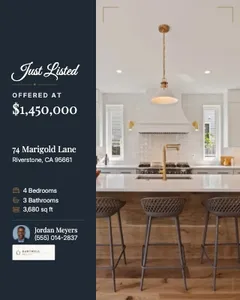
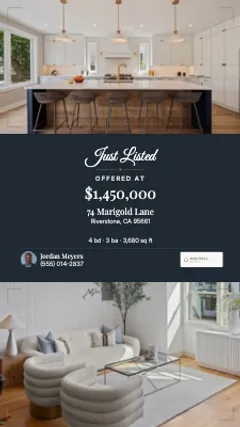
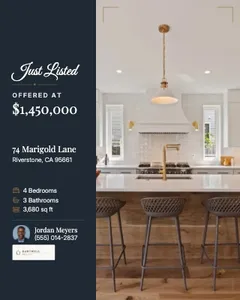
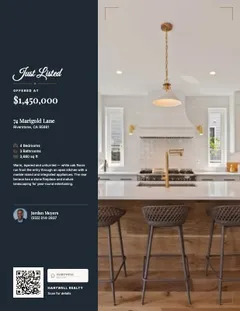
If you haven’t delivered any designs, the section invites the agent to Create assets instead, using the order’s own photos in the preview.
Agents making their own
Create asset opens the same template library, one format at a time. The agent picks a template, or starts from a blank page or a custom size, and edits it in the browser: swap photos, rewrite any text, change fonts and colors, add shapes, badges, or their own uploads, and resize a finished design into another format.
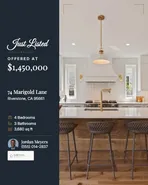
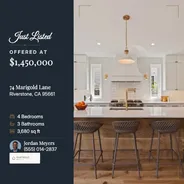
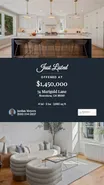
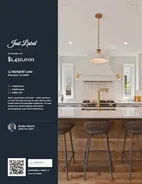
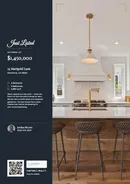
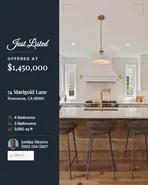
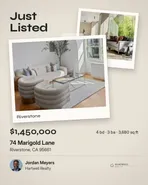
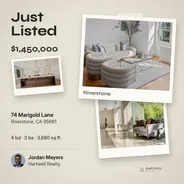
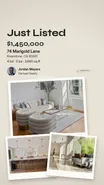
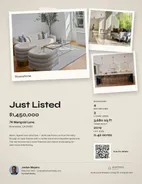
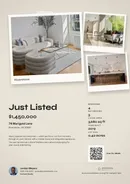
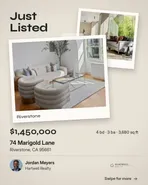
What the agent makes is saved to the order under Made by you, so it follows them to any device — and you can open and edit it too. Listing details are read-only for them — “These details come from your photographer” — so if a price or square footage is wrong, it gets fixed on your side, in the order’s listing details.
When they’re done, Download gives them:
- Images as JPG or PNG, with multi-page designs like carousels packed into a ZIP.
- Flyers as a PDF — Print-ready with bleed for a print shop, or Home printer trimmed to the page.
- A Branded or Unbranded version, the unbranded one safe for listing portals.
On an iPhone or iPad, images go straight to the camera roll with Save to Photos — the same Save to Photos the gallery offers for the shoot itself. See saving photos and videos to an iPhone.
Formats and templates
| Format | Size |
|---|---|
| Post 4:5 | 1080 × 1350 px |
| Square 1:1 | 1080 × 1080 px |
| Story 9:16 | 1080 × 1920 px |
| Carousel 4:5 | 1080 × 1350 px, 2–10 slides |
| Flyer · Letter | 8.5 × 11 in, 1–2 pages |
| Flyer · A4 | 210 × 297 mm, 1–2 pages |
| Link image | 1200 × 630 px, blank page only |
Templates come in named sets, such as Noir Luxe and Snapshot, and each set covers every format from post to flyer, so a listing’s story and its flyer match. The picker filters by style and by how many photos a template takes.
Each design carries a moment that sets the badge and wording: Coming Soon, Just Listed, Open House, Price Reduced, Under Contract, Just Sold, For Rent, or Just Rented. It starts from the listing’s status, so an active listing opens as Just Listed.
What fills in on its own
Designs are filled from the order before anyone touches them:
- Photos — the delivered photos and floor plans, with the hero image and the strongest rooms placed first.
- Address — from the order.
- Listing details — price, beds, baths, square footage, and the rest of what you entered when you built the property website. Fill those in and every design arrives complete.
- Agent — name, title, photo, phone, email, and license number from the agent’s own profile in the client portal, or from their client record. If the agent has hidden their phone, email, or photo, the design respects that.
- Brokerage — name and logo from the agent’s profile or the brokerage company on the order.
- QR code — links to the property website once it’s published.
When something a template needs is missing, the editor says so — “Add a price or hide it”, for example — rather than leaving an empty gap.
Whose branding goes on the design
Listing designs are the agent’s marketing, so they carry the agent’s and brokerage’s branding: the brokerage’s colors and fonts when it has a brand kit — you can pull one from the brokerage logo in the editor’s Brand panel — otherwise the template’s own style. Your studio’s name and logo never appear on a listing design. The page the agent creates it from is still your branded delivery page.
Settings → Marketing holds your Studio brand kit — the colors and fonts your studio’s own marketing starts from, which you can pull straight from your logo. It never replaces the agent’s or brokerage’s branding on a listing design.
When the section appears
Marketing assets shows on an order when it has been delivered and its downloads aren’t locked for payment. If you use pay-to-download, the section stays hidden until the order is paid, then appears along with downloads.
It’s shown to the people on the order who get the delivery — the primary client and anyone with Gets the delivery on. See agents, sellers, and billing contacts.
Marketing Studio makes still images and PDFs. It doesn’t make video, and it doesn’t post to social networks — agents download or share the files and post from their usual apps.
Go deeper
- Delivery galleries — the page Marketing assets sits on, and everything else the client can do there.
- Editing a property website — fill in the listing details every design pulls from.
- Agents, sellers, and billing contacts — who on an order gets the delivery, and with it the marketing assets.
- Companies — the brokerage name and logo a design falls back to when the agent hasn’t set their own.
- Managing your account and agent profile — where agents set the details that fill their designs.
Frequently asked questions
Do I have to set anything up before agents can use Marketing Studio?
No. Once an order is delivered and its downloads aren't locked, the Marketing assets section appears on the client's delivery page and portal order automatically, and the agent can create their own designs from your photos. Adding ready-made designs to the delivery yourself is optional.
Will my studio's name or logo appear on the agent's posts?
No. Listing designs carry the agent's and their brokerage's branding, never your studio's — the post is the agent's marketing. The delivery page they create it from still carries your business name.
Can agents post straight to Instagram from Spatiko?
No — there's no direct posting. Agents download the files, share them from their phone's share sheet, or on an iPhone or iPad save images straight to Photos, then post from their usual app.
Why can't my client see Marketing assets on an order?
The section appears only on a delivered order whose downloads aren't locked for payment. With pay-to-download on, it shows up the moment the order is paid. It's also limited to people on the order who get the delivery.