Choosing Which Photos Show on a Property Website
Pick the cover, reorder, and hide photos or floor plans on a Spatiko property website, without changing what the client gets in their delivery.
Last updated
A property website pulls its photos and floor plans straight from the order, so you never upload them twice. You still decide which ones the listing shows, in what order, and which photo leads the page. This guide covers how to do that, from the website editor or from the order’s Media tab. Nothing you change here removes anything from the client’s delivery.
Open the photo editor
Open the property website from its order and go to the Sections tab. Each gallery row shows a count, like “10 of 12 photos” once you’ve hidden some, plus a strip of the photos that are showing. Three buttons open the photo editor:
- Edit photos on the Gallery row.
- Edit floor plans on the Floor Plans row.
- Change cover on the Hero row, which is pinned at the top.
Clicking the strip of thumbnails opens the same editor.
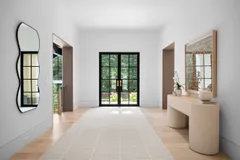
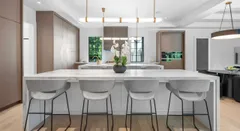
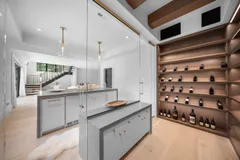
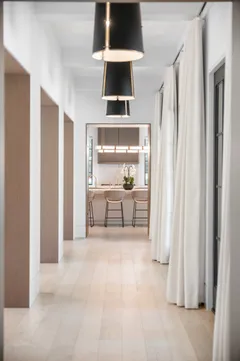
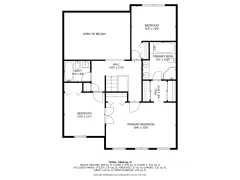
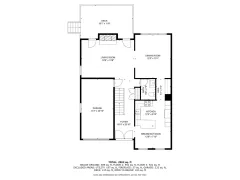
Pick the cover, reorder, and hide
The editor opens full screen with your photos first and your floor plans below them. Every change saves as soon as you make it, so there’s no Save button. Changes reach the live page within a few minutes. To see them right away, close the photo editor and click Preview in the website editor.
- Pick the cover. Hover over a photo and click Set cover. The cover leads the page and always sits first in the grid, marked Cover. Floor plans can’t be the cover.
- Reorder. Drag a photo or floor plan to a new spot. The number on each tile is its position on the live page, counting only the ones that are showing.
- Hide or show. Click the eye icon on a tile (Hide from website / Show on website). A hidden tile turns grey, gets a Hidden badge, and drops out of the numbering. Spatiko confirms that “It stays in your delivery — only the public page changes.”
If you hide the photo that’s set as the cover, the page leads with the next visible photo until you choose a new cover.
Order and cover are shared with the order
The website doesn’t keep its own copy of the photo order. The editor changes the order’s photos directly, so the studio and the listing agent always work on the same listing. That means:
- Reordering here reorders the order. The new sequence also shows up on the order’s Media tab, in the client’s delivery gallery, and in the numbering of downloaded files.
- The cover is the order’s Hero. The Media tab calls the same photo the Hero (Set hero), and the client portal shows it first too.
- Hiding only affects the website. Hidden photos stay in the delivery and downloads.
Keep a photo off the site from the Media tab
You don’t have to open the website to hide a shot. On the order’s Media tab, right-click a photo and choose Hide from property website. The tile gets an Off website badge so you can see what the site leaves out, and Show on property website puts it back. Videos have the same option in their right-click menu.
That menu is available on a computer. On a phone or tablet, use the website editor instead for photos and floor plans.
Section changes and photo changes save differently
The Sections tab has two kinds of changes:
- Sections: dragging a section, hiding one, renaming a heading, or clicking Reset order. These wait for you to click Save changes. Reset order puts the sections back in the recommended order and shows all of them again. It doesn’t touch your photos, cover, or photo order.
- Photos: everything in the photo editor saves right away.
For more on arranging and renaming sections, see editing a property website.
Who can choose the photos
- Your team. Team members need the Manage order media permission. Someone who only sees the orders assigned to them can do it on those orders. Without that permission, the Sections tab shows the photos but no Edit photos button. See roles and permissions.
- The listing agent. The primary client on the order can pick the cover, reorder, and hide photos and floor plans from the property website in their client portal.
- Co-agents and sellers. If they get the order’s delivery, they can open the site in their portal, but they can’t change its photos, sections, or details.
Go deeper
- Editing a property website — listing details, section order and headings, templates, and the agent block.
- Uploading & processing media — adding or replacing the photos the website reads from.
- Delivery galleries — the client’s gallery, which follows the same photo order.
- What clients can edit on a property website — what the listing agent sees when choosing photos from the portal.
Frequently asked questions
Does hiding a photo from the property website remove it from the client's delivery?
No. Hiding only changes the public listing page. The photo stays in the delivery gallery and in every download, and the order's Media tab marks it "Off website" so you can see at a glance which shots the site leaves out.
Why did reordering the website photos change my delivery gallery too?
Because each order has a single running order for its photos. The website editor and the order's Media tab both change that same order, so a new sequence also shows up in the delivery gallery and in downloads. The cover always stays first.
Can the listing agent pick the website photos themselves?
Yes. The primary listing agent on the order can reorder, hide, and pick the cover from the property website in their client portal. Co-agents and sellers with portal access can open the site but can't change its photos.
What happens if I hide the photo that's set as the cover?
The page leads with the next visible photo until you choose a new cover. The hidden photo still counts as the order's cover (the Hero on the Media tab), so pick another one if you don't want to show it at all.